Reset the Session or the Whole Install
The Visualizer has two resets. Pick the smallest one that solves the problem.
| New session | Reset to a new install | |
|---|---|---|
| Where | Session › Hubs | Settings (gear) › General |
| Deletes | The session's shared objects (app volumes, GUI panels, rooms), its id, invite and certificates, each device's last joined session, onboarding codes and running pipelines | Everything this Hub and Visualizer keep: certificate authority, sessions, paired devices, approved apps, links to member Hubs, audit log, Visualizer settings, layout, stereo presets, receivers, cameras, web app sources |
| Keeps | Hub name and room, remembered and paired devices, approved apps and their presets, revoked devices, licence, member Hubs, Visualizer layout, receivers, stereo presets, cameras | Logs and the launcher configuration |
| Devices pair again | No: paired devices move to the new session on their own | Yes, every device and app |
| Use it when | The session shows stale volumes, rooms or peers | You hand the PC over, or want to start completely fresh without uninstalling |
Neither reset can be undone.
Start a new session
New session replaces what older versions called Reset session. The Hub retires its session and starts the next one (the generation under the session id goes up by one).
-
Click Session in the left rail, then the Hubs tab.
-
Click New session under the Hub list.
-
The confirmation Start a new session? opens in place. Hover its (?) for the full list of what is discarded and what is kept.
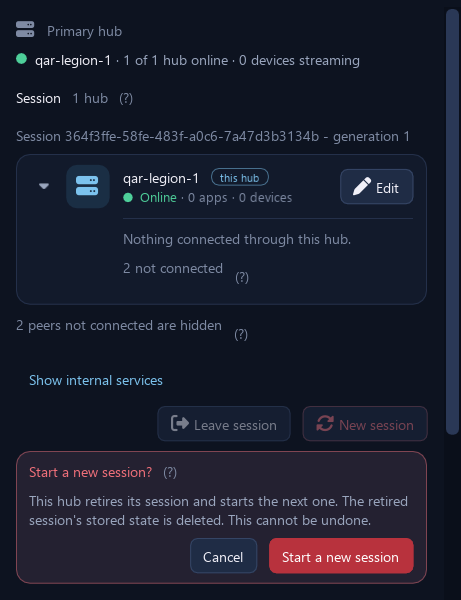
-
Click Start a new session, or Cancel to leave everything as it is.
-
The Visualizer closes and comes back on the new session. Paired devices move to it on their own.
Afterwards Rooms shows only the default room and no app volumes or panels are left; Devices still lists your remembered headsets.
- Leave session next to it is for a member Hub only: it leaves the primary Hub's session.
- New session is disabled while the Hub has no control session, for example while it starts.
Reset to a new install
-
Click Settings (gear, bottom of the left rail) › General.
-
Scroll to Reset to a new install and click Reset to a new install....
-
Read the confirmation Reset this hub and Hub Display to a new install?, then tick I understand that every device and app must pair again. The confirm button stays disabled until you tick it.
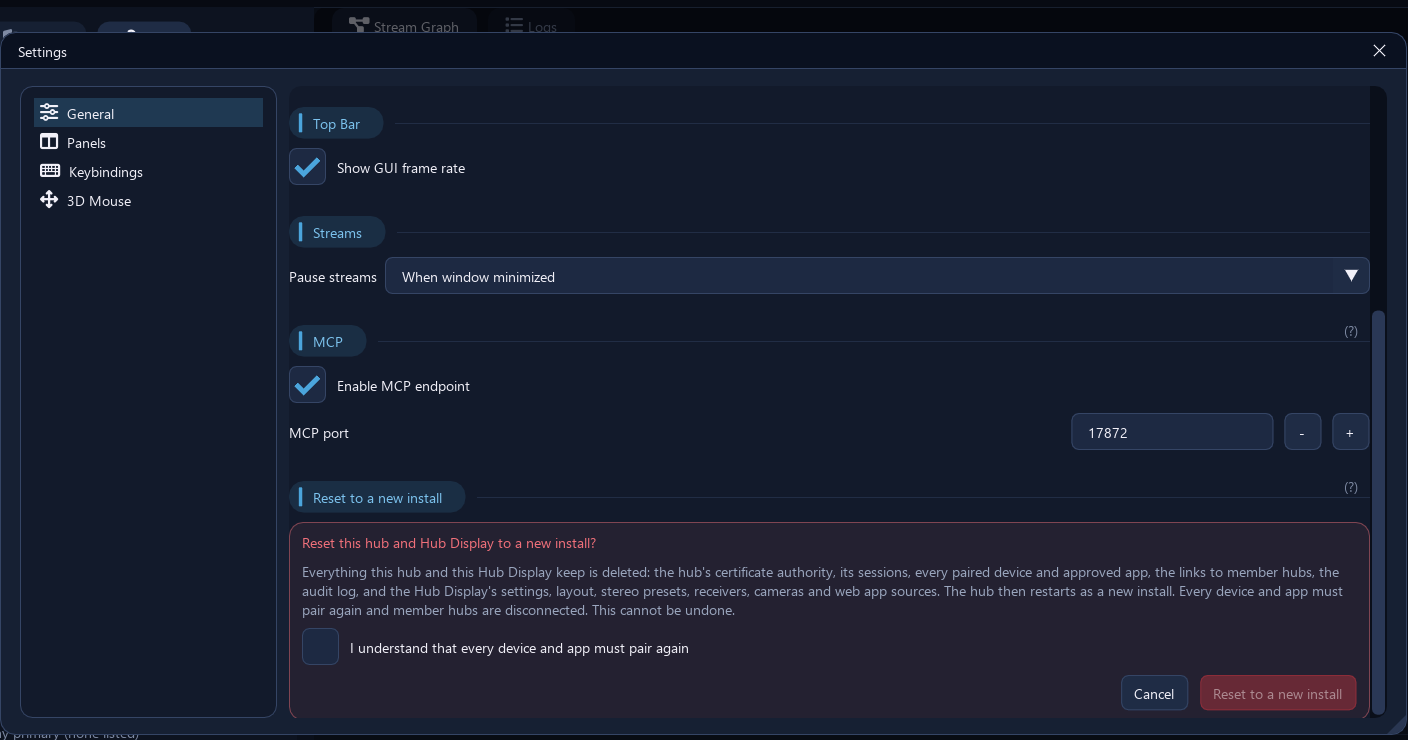
-
Click Reset to a new install. The Visualizer closes and the QAROS start-up screen shows Resetting to a new install... while the data is deleted, then the normal start-up lines.
-
A new, empty Visualizer opens: no receivers, no approved apps, no paired devices, a new session. Logs from before the reset are still there.
- If another program holds one of the files open, the start-up screen ends with Resetting to a new install failed: … could not be deleted … and the path. Close that program and restart QAROS from the tray: the next start deletes what is left.
- On a member Hub the button is disabled: leave the primary Hub first.
- With no Visualizer open (headless Hub), the result is a tray notification instead.