Rerun
Stream Rerun into the room: the 3D view in its app volume, the images, plots and text as panels beside it, and a timeline you can scrub with a finger. This tutorial starts on a PC with no Rerun at all and opens one of Rerun's example recordings. About 10 minutes, no code.
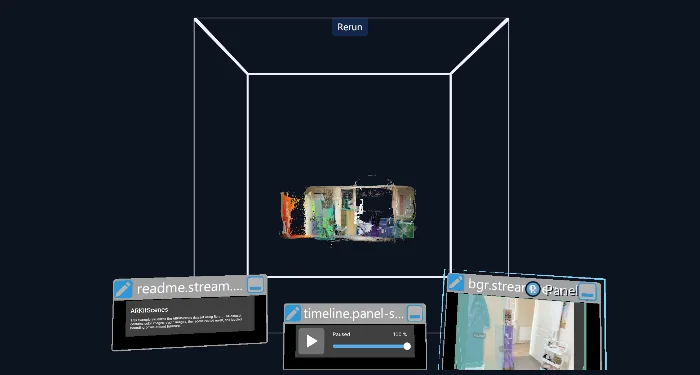
You will:
- set up the QAROS Rerun viewer, one of three ways;
- pick an example recording in Rerun's welcome screen;
- see what streams, and control the timeline;
- view it in a headset or a Display Receiver.
The screenshots show the QAROS Rerun viewer 0.1.1, which is Rerun 0.40.0. To log your own data, script the viewer or build it yourself, see the developer page The Rerun Viewer.
Before you start
| Needed | |
|---|---|
| QAROS | installed and running on this PC (Windows x64), 0.10.0 or newer for way 1 |
| GPU | a Vulkan driver (any recent NVIDIA, AMD or Intel GPU) |
| Internet | for the download and for the example recordings, which Rerun loads from its website |
| Viewer | a Display Receiver in the Visualizer, or a headset paired with this QAROS (Before You Start) |
You need nothing from Rerun itself: the QAROS Rerun viewer is a complete Rerun viewer.
What the Rerun source is
Rerun records and shows multimodal data: point clouds, meshes, camera images, depth, plots, text and logs, on a timeline. The QAROS Rerun viewer (qaros-rerun.exe) is the Rerun viewer with a second output to QAROS.
- The viewer runs on the QAROS PC. Its desktop window stays a normal Rerun viewer.
- Everything you open in it streams: an example, a
.rrdfile, or data your own program logs.
Step 1: Start QAROS and add a receiver
Follow Before You Start: Start QAROS and Add a Receiver: start QAROS, open the Visualizer, and add a Display Receiver (+ Add receiver at the bottom of the Stream Graph), or start the player app on your paired headset.
Do this first. The Visualizer starts a source only once something can show it; until then its card under Running reads Waiting for a target.
Step 2: Set up the Rerun viewer
Three ways, in this order. Start with the first; if your QAROS does not offer it, take the second; the third always works.
| Way | You do | QAROS does |
|---|---|---|
| 1. From the Visualizer | press Install, then Launch | downloads the viewer, starts it streaming with its panels and timeline |
| 2. Added in Sources | download the viewer, add qaros-rerun.exe in Sources, type its options once | starts it streaming |
| 3. By hand | download the viewer, run it from a terminal | nothing; the viewer joins QAROS by itself |
Way 1: From the Visualizer
-
Start QAROS from the Start menu. The Visualizer opens.
-
Click Sources on the left rail. Type
Rerunin the search field.- The Rerun row shows Installable: QAROS knows the viewer but has not downloaded it yet.

-
Click the row. The Detected app dialog opens.
-
Under Download, click Install (Update when a newer viewer is out).
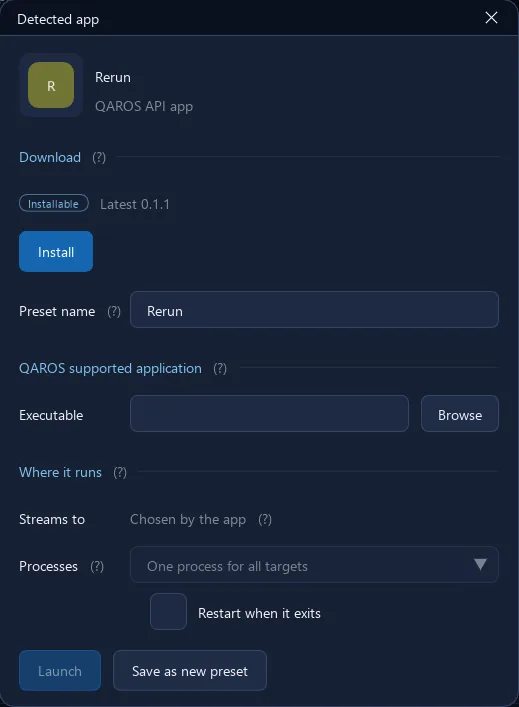
- QAROS downloads the latest viewer (about 80 MB), checks it and unpacks it for your Windows user. No administrator rights.
- It goes to
%LOCALAPPDATA%\Quaternar\Qaros\apps\qaros-rerun\<version>\windows-x64\.
-
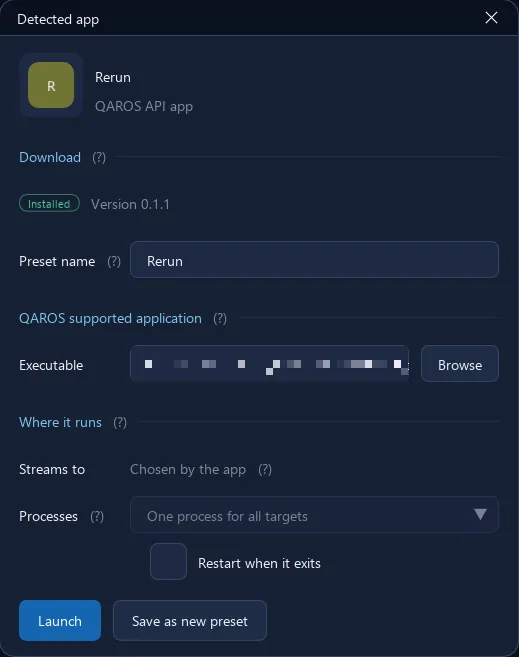
Download then shows Installed and the version. Close the dialog and click the row again: Executable now names the viewer and Launch is blue.
-
Click Launch.
-
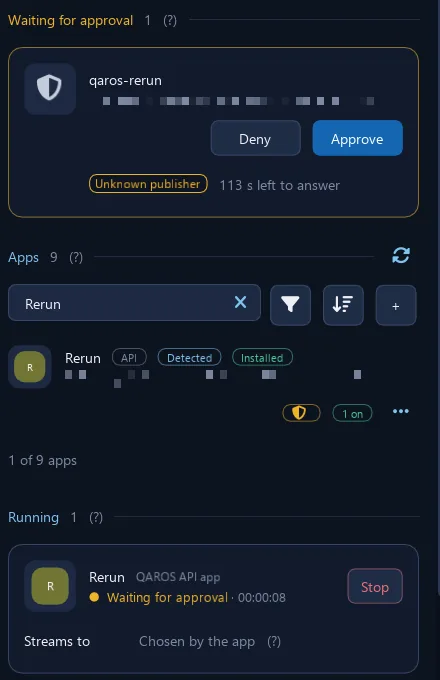
First start only: QAROS asks whether the viewer may join. In Sources, under Waiting for approval, check that the path is the viewer's and click Approve within 2 minutes (Approved local apps). Later starts join without asking.
-
The Rerun window opens with its welcome screen. Under Running, the Rerun card shows Connected.

The Rerun row starts the viewer with its 2D views and timeline turned on, so everything in Step 4 streams.
No Rerun row in Sources, or it says Not available? Your QAROS is older than 0.10.0 or cannot reach the internet. Take way 2 or way 3.
Way 2: Add it in Sources
Point QAROS at a viewer you downloaded. It gets a row of its own, which you set up once.
-
Download the viewer:
qaros-rerun-<version>-windows-x64.zip. Unzip it into a folder of your own, for exampleDocuments\qaros-rerun. -
In Sources, click + beside the search field. Add source app opens.

-
Click Open QAROS supported app.
-
Executable: click Browse and pick
qaros-rerun.exein the folder you unzipped. Name fills in asqaros-rerun; change it if you like.
-
Click Add app. A qaros-rerun row appears, marked API only. It is a plain app, not the Rerun row of way 1: it does not know the viewer's options yet.
warningLaunched as it is, the viewer opens its window but never joins QAROS: its card stays at Joining the hub, then Not joined, and it writes pictures into an
outfolder besideqaros-rerun.exe. Click Stop, and give it its options first.
-
Switch the Visualizer to Developer mode: Settings (bottom of the left rail) > General > Interface Mode > Developer. Only this mode shows an app's arguments.

-
Click the qaros-rerun row. Under Arguments, type these six lines, one per line, exactly as the Rerun row of way 1 passes them:
--sinkqaros--launched-by-qaros--local-app--window--panels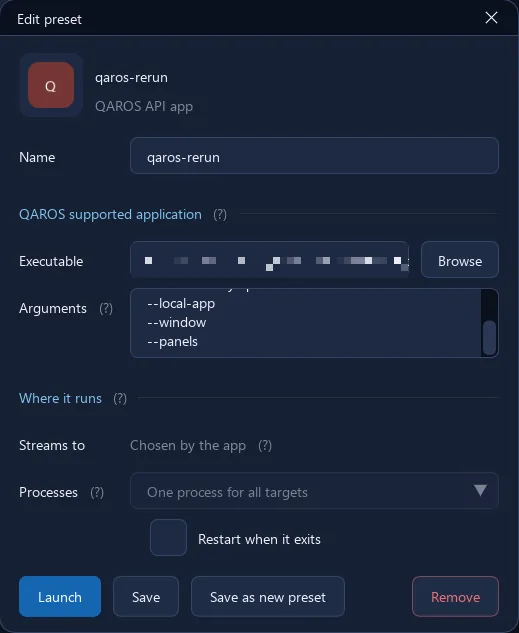
-
Click Save, then Launch.
-
First start of this copy: click Approve under Waiting for approval, as in way 1. QAROS asks once for each
qaros-rerun.exeon the PC. -
The card under Running shows Connected. Switch back to Basic mode if you like: the row keeps its arguments.

What the six lines do: --sink qaros streams to QAROS (without it the viewer only writes pictures); --launched-by-qaros and --local-app join this PC's QAROS as an app QAROS started, so Stop ends it; --window opens the desktop window, where you pick the example; --panels streams the 2D views and the timeline.
Way 3: By hand
Always works, also when QAROS cannot reach the internet or is older than 0.10.0. Use it to troubleshoot.
-
Download the viewer (
qaros-rerun-<version>-windows-x64.zip) and unzip it. -
Start QAROS from the Start menu (or run
qaros.exein the QAROSbinfolder) and open a Display Receiver or your headset's player app (Step 1). -
Open a terminal in the folder you unzipped (in Explorer, right-click inside the folder > Open in Terminal) and run:
.\qaros-rerun.exe --sink qaros --local-app --panels--sink qarosstreams to QAROS;--local-appjoins the QAROS running on this PC;--panelsstreams the 2D views and the timeline.- Run it in your own Windows session, not over a remote shell.
-
First start of this copy: click Approve under Waiting for approval in Sources.
-
The Rerun window opens. The terminal shows the viewer's log;
qaros: rendering for user-1 (Display Receiver 1, ...)means it streams.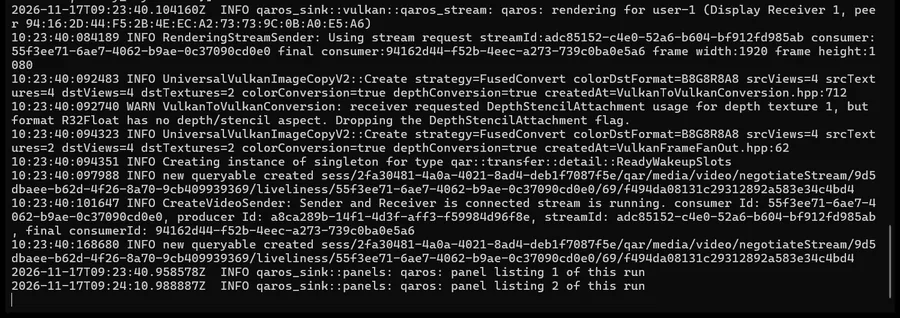
-
Quick test without an example: in a second terminal in the same folder, run
.\log-test-scene.exe 600. An orange cube in a ring of light-blue points, a colour image and a sine plot appear in the viewer and stream.In the Rerun window In a Display Receiver 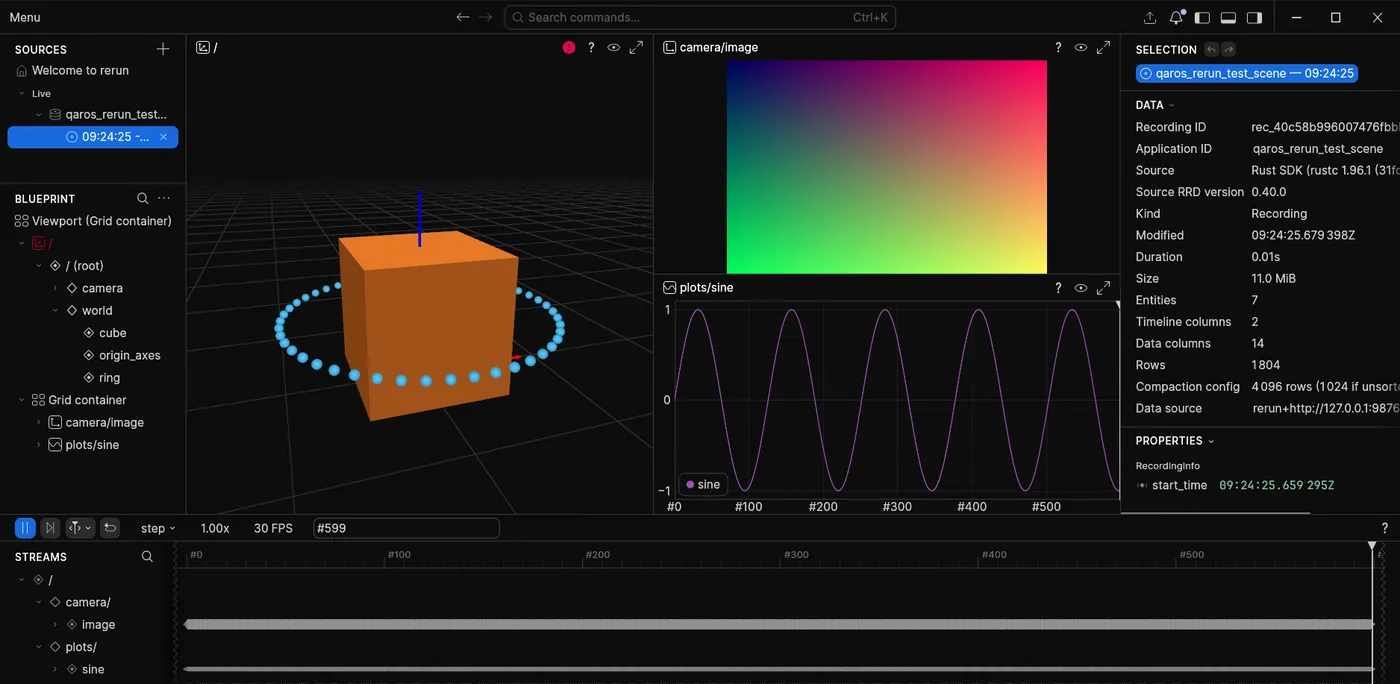

-
Stop it with Ctrl+C in the terminal, or close the Rerun window. A viewer started by hand is not listed under Running in Sources.
Started this way, the viewer opens its window by itself (--window is only needed when QAROS starts it). .\qaros-rerun.exe --help lists every option.
Step 3: Pick an example
-
In the Rerun window, scroll the welcome screen down to Example recordings.
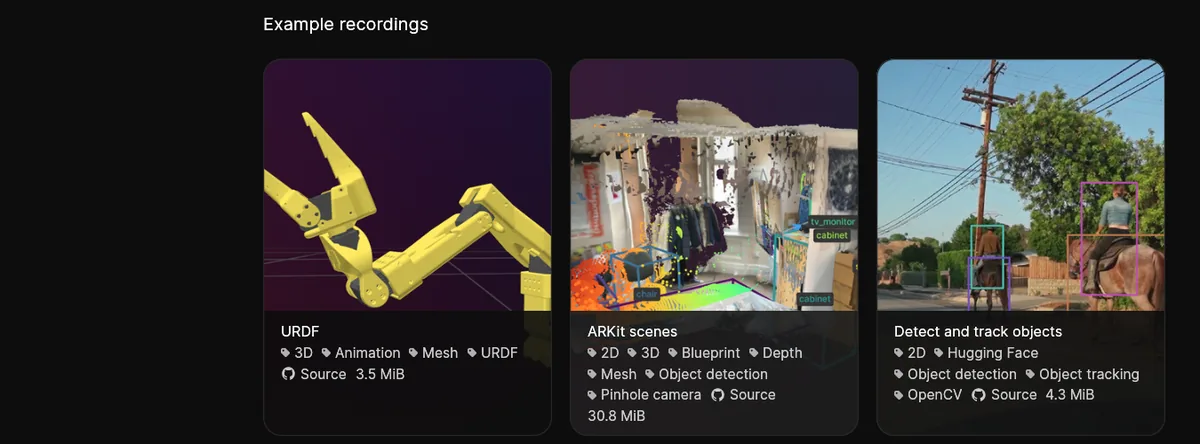
-
Click an example. This tutorial uses ARKit scenes: a room scanned with a phone, with the camera image, depth and labelled boxes. Rerun downloads it (31 MB) and starts playing it.
-
The viewer now shows the example's layout: the 3D view, the BGR image (with Depth as a second tab), the Readme, and the time panel at the bottom.
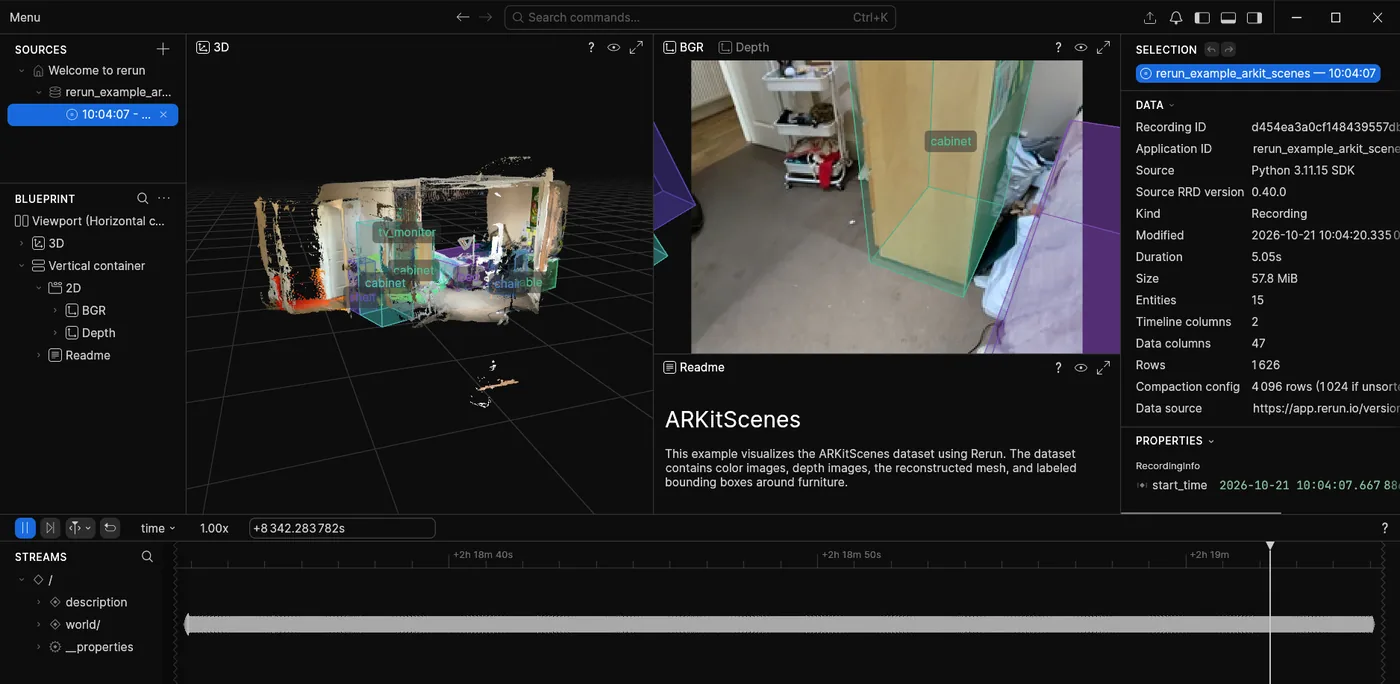
- Each card names its kind: 3D examples fill the app volume, 2D examples open panels, examples with both do both.
- An example with no 3D view streams panels and the timeline only; one with no 2D view streams the scene and the timeline.
- Examples with a video (such as Detect and track objects) need FFmpeg on the PC to play their video; Rerun says so in the view. The other views still stream.
Step 4: See what streams
| In the Rerun window | In the room |
|---|---|
| The 3D view | The scene in the app volume Rerun, 1.5 m on each side, in stereo for each headset, fitted to about 0.7 of the volume |
| Each other visible view (image, depth, plot, text, map) | A panel of its own, 0.45 m wide, beside the scene |
| The time panel | The timeline panel: a track and a Play button, in front of you |
- Each panel's title starts with the view's name:
bgr.stream...,readme.stream...,timeline.panel-stream.... - A view becomes a panel about 3 s after it shows up in the layout. A view in a hidden tab (here Depth) does not stream: click its tab to stream it instead.
- Panels show the viewer's own pixels, updated about 17 times a second.
- Rerun's own labels and selection overlays in the 3D view do not stream; in the image panels they do.
Step 5: Control the timeline
| Do | Where | Result |
|---|---|---|
| Drag along the track | Timeline panel, with a finger | Pauses and moves the time; the 3D view and every panel follow |
| Tap Play | Timeline panel | Plays on from there; examples loop |
| Drag the time cursor, press play or pause | Rerun window, time panel | The timeline panel follows a few times a second |
| Change speed or the timeline | Rerun window, time panel | Applies to the stream too |

The desktop and the headsets share one time: whoever moves it last wins.
Step 6: View it in the headset
- Put on the paired headset with the QAROS player app running. A headset that joins later gets the stream within about a minute.
- Look for the app volume Rerun, 0.5 m above and 1.6 m in front of the room origin.
- The panels open within reach of the first headset near the scene: the timeline straight ahead at elbow height, the views to the sides.
- Gestures:
- one-hand grab moves the scene, a two-hand spread scales it;
- drag a panel by its edge to move it;
- a finger on the timeline track scrubs, a tap on Play plays.
- QAROS keeps the scene's place and every panel's place for the next start.
In a Display Receiver you see the same scene and panels. Its panels open in front of it once no headset has streamed for 60 s.
Step 7: Stop
- Stop on the card under Running in Sources (ways 1 and 2), or Ctrl+C in the terminal (way 3), or close the Rerun window.
- The app volume and the panels are hidden, not closed: the next start shows them where you left them.
Tips
- A
.rrdfile: File > Open in the Rerun window, or drag the file onto it. - Several recordings at once: + next to Sources in the Rerun window. Each is fitted to the volume by itself.
- Your own data: log to the running viewer from any Rerun SDK 0.40.0, for example in Python
rr.connect_grpc("rerun+http://127.0.0.1:9876/proxy"). Details: The Rerun Viewer. - Sitting at a desk: add
--panel-postureandsittingas two more argument lines (way 2) or to the command (way 3): the panels then clear the desk. - Panels far away (left by another headset): add
--move-far-panels, or close the panels in the Hub Display for fresh placement. - Don't minimise the Rerun window while it streams: that freezes the panels. Cover it instead.
If something is off
| Problem | Fix |
|---|---|
| The Running card says Waiting for a target | Nothing can show the stream yet: open a Display Receiver or the headset's player app (Step 1). |
| The card says Waiting for approval, no Rerun window | Click Approve under Waiting for approval in Sources. |
| Launch stays grey right after Install | Close the dialog and click the Rerun row again. |
| A hand-added qaros-rerun row stays Joining the hub, then Not joined | It starts without options. Add the six argument lines of way 2, step 7. |
| No Rerun row, or it says Not available | QAROS older than 0.10.0, or no internet: take way 2 or way 3. |
| The welcome screen shows no examples | They load from Rerun's website: check the PC's internet connection or proxy. |
| Only the 3D view streams, no panels | The viewer runs without --panels (a hand-added row or command without it), or the view is in a hidden tab. With viewer 0.1.0, a panel of another app (a web app's controls panel) also stops the panels: update the viewer (Update on the Rerun row). |
| Nothing in the headset | The player app runs and is joined; look for the volume Rerun in front of the room origin. Start with --reset-placement if the scene was moved away. |
QAROS handed back app volume "rerun" closed in the log | Another viewer has that volume: give one --volume-name another name. |
| Slow with large point clouds | Shorter time windows in the blueprint; compact recordings with rerun rrd optimize. |
More, for logging your own data and every option: The Rerun Viewer.